Navigating Frappe Sign
Opening the app
Frappe Sign appears on the Frappe apps screen for anyone with a Frappe Sign role. Clicking its tile opens the Sign Document page, which lists what the current user has to sign.
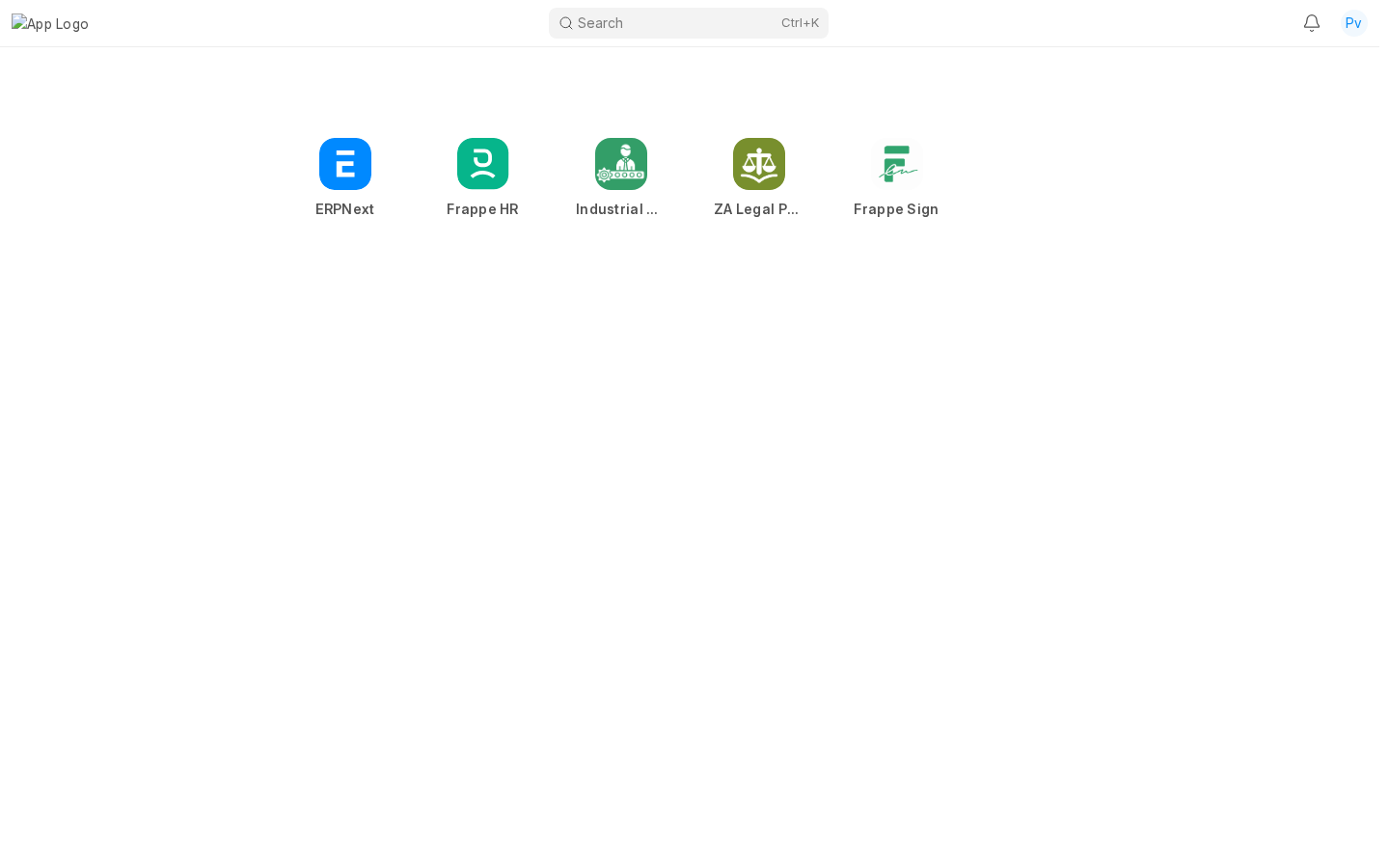
The sidebar
Everything else is reached from the Frappe Sign sidebar. What you see depends on your role.
A Frappe Sign Manager (or Sender) sees the full sidebar:
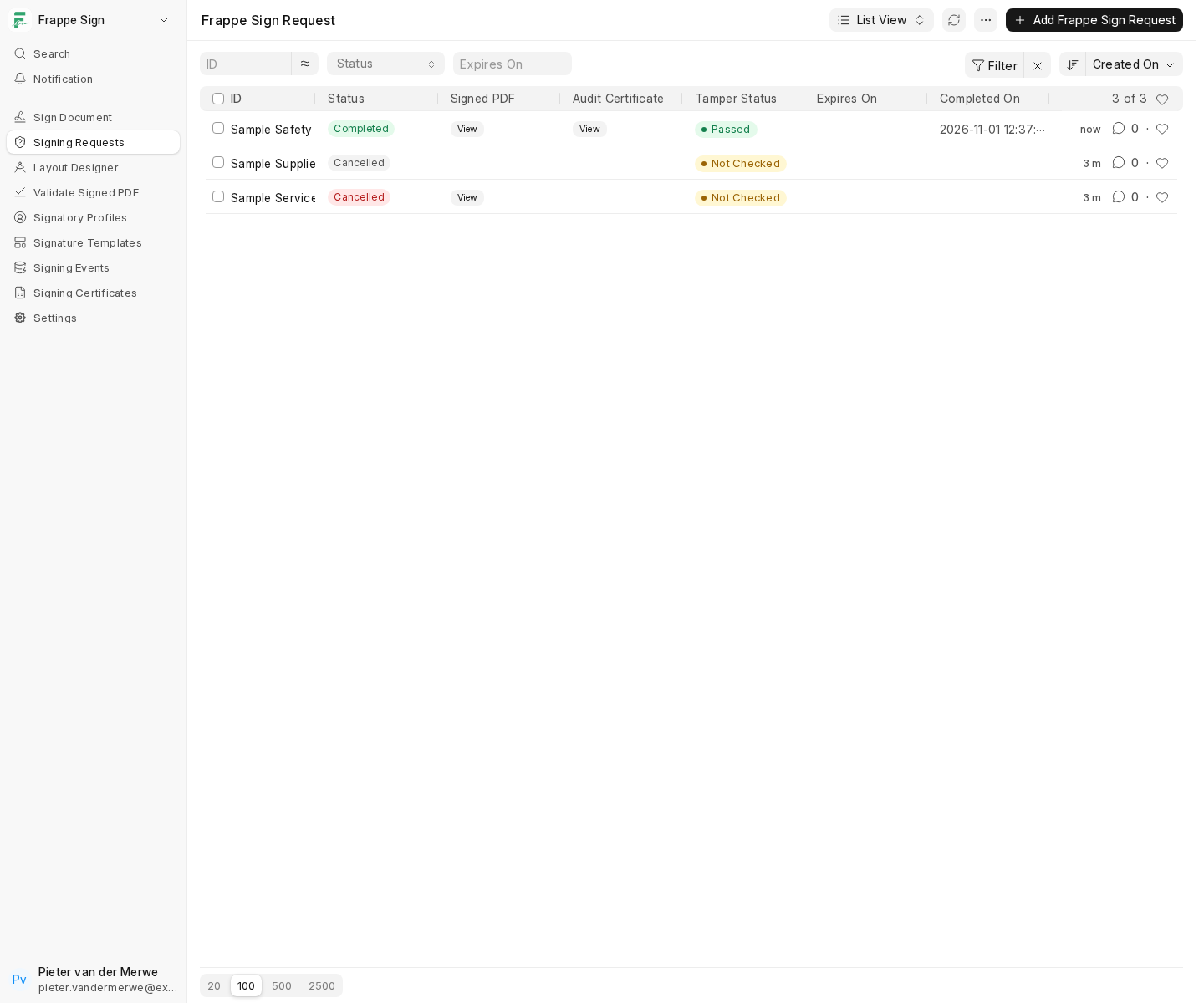
| Sidebar item | Opens | Used by |
|---|---|---|
| Sign Document | Your outstanding signing requests, signable inside Desk. See Signing a Document. | Everyone |
| Signing Requests | The Frappe Sign Request list. Signers see only requests they are on; Senders see their own; Managers see all. | Everyone |
| Layout Designer | The Frappe Sign Designer. It is normally opened from a request or template rather than directly. | Senders, Managers |
| Validate Signed PDF | The validator page. See Validating Documents. | Everyone |
| Signatory Profiles | Frappe Sign Profile records. | Everyone (own profile), Managers (all) |
| Signature Templates | Frappe Sign Template records. | Managers |
| Signing Events | The audit-event log. | Read-only evidence |
| Signing Certificates | Audit certificates and final verification packages. | Read-only evidence |
| Settings | Frappe Sign Settings. | Managers |
A Frappe Sign User who only signs documents sees a shorter sidebar, without the Designer, Templates or Settings:
Portal pages
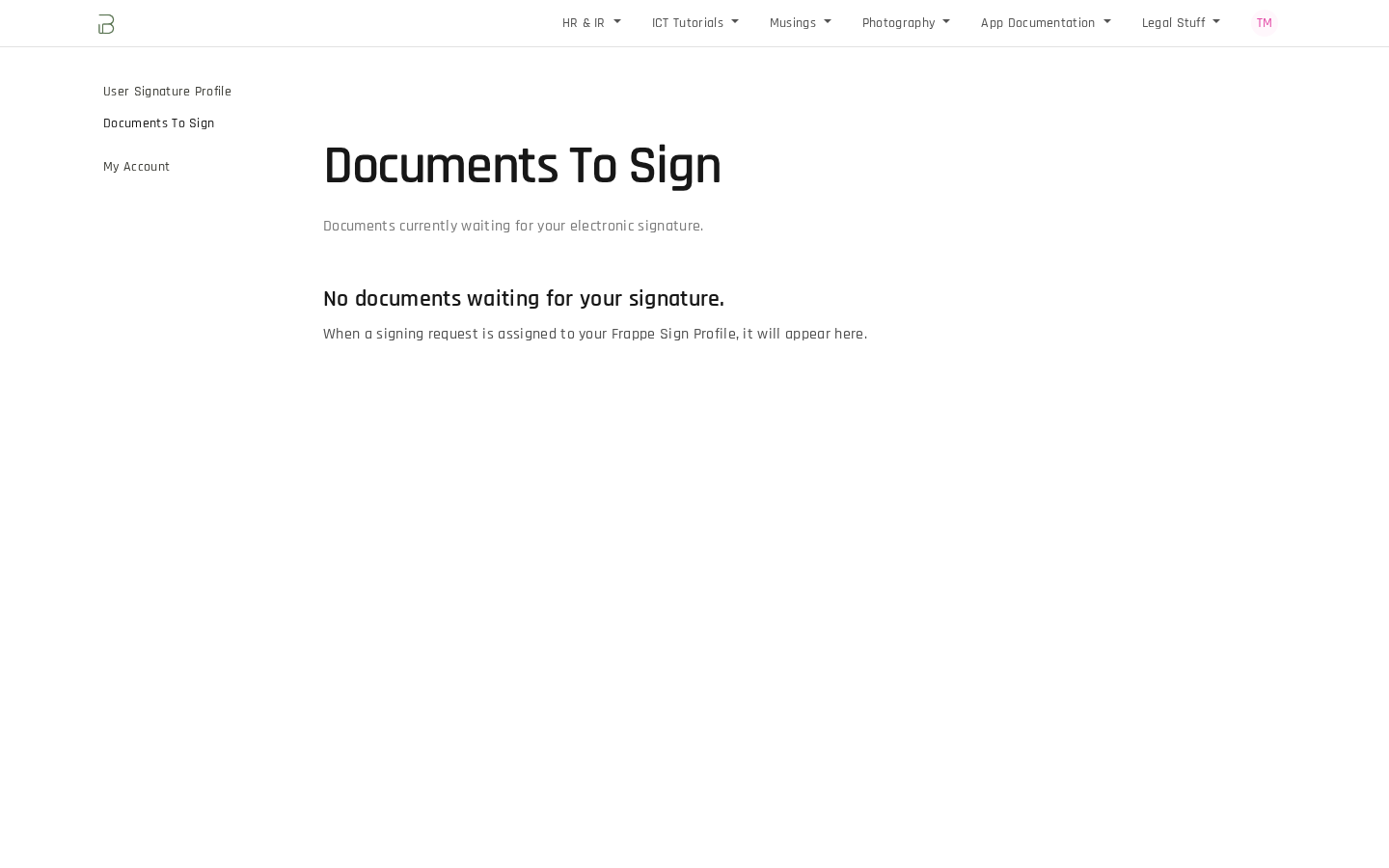
Signers can also use two website (portal) pages, listed in the portal menu of their account:
- User Signature Profile (
/frappe-sign-profile): set up or change a saved signature and initials, and give signing consent. - Documents To Sign (
/frappe-sign-documents): a list of requests waiting for you, with a link to each.
External signers never need Desk or the portal. They only ever use the unique link in their email, which opens /sign/<token>.
Last updated 4 days ago
Was this helpful?