Frappe Sign Settings
Open Settings from the Frappe Sign sidebar. This single document controls how the whole app behaves for everyone. Only a Frappe Sign Manager or System Manager can change it.
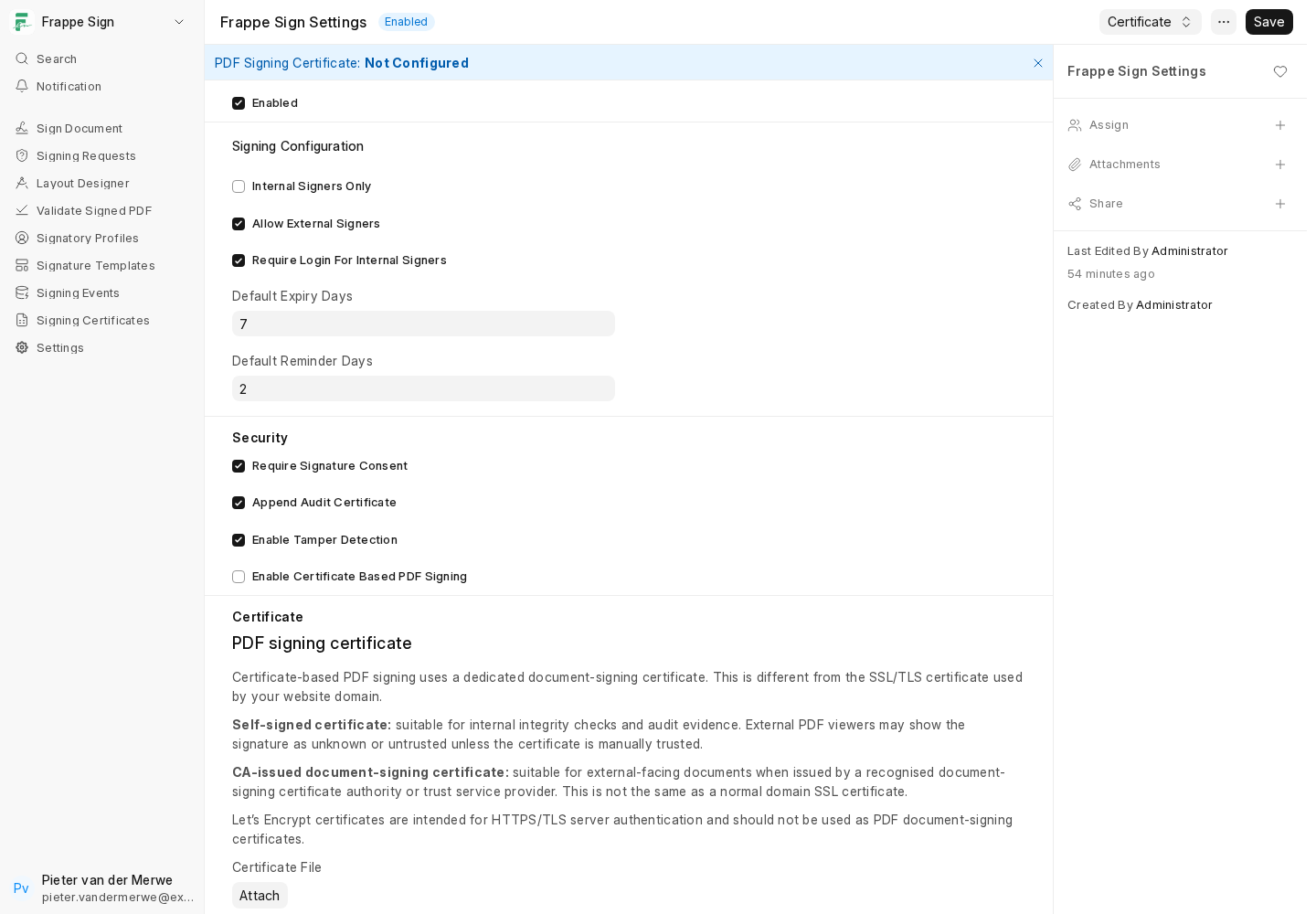
Signing configuration
| Setting | What it does |
|---|---|
| Enabled | The master on/off switch for the whole app. |
| Internal Signers Only | Signers must be internal Frappe users. |
| Allow External Signers | Signers may be people without a Frappe user account, who sign only through their emailed link. Each configured source DocType also has its own Allow External Signers switch. |
| Require Login For Internal Signers | An internal signer must be logged in to open their link. External signers are never asked to log in. |
| Default Expiry Days | Sets Expires On for new requests created from a Frappe document. See the note below. |
| Default Reminder Days | The minimum number of days between reminder emails to the same signer. |
Choose either Internal Signers Only or Allow External Signers. The settings form does not stop you ticking both, so check this when you configure the app.
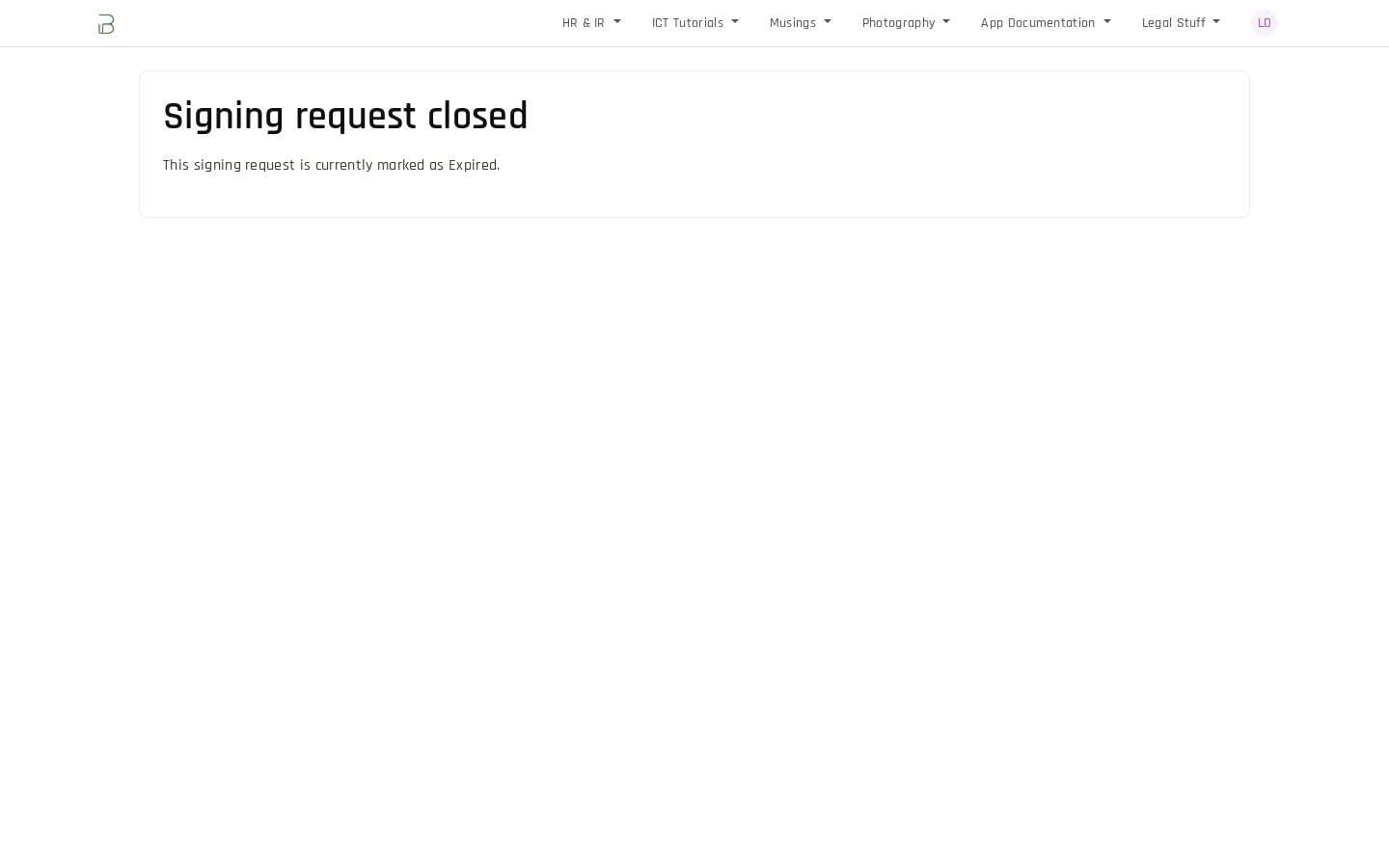
Expiry. Once Expires On has passed, the request can no longer be signed. A signer who opens their link sees "This signing request is currently marked as Expired.", and the request moves to Expired with any open signers set to Skipped and an Expired event recorded. This happens on the next signing action or, at the latest, in the daily
expire_overdue_signing_requestsjob. Requests created from an uploaded PDF have no Expires On unless you set one.
Security
| Setting | What it does |
|---|---|
| Require Signature Consent | Signers must consent to using their saved signature and initials before they can sign. They see a Consent Required prompt the first time. See Signing a Document. |
| Append Audit Certificate | Appends the audit certificate to the signed PDF, producing the combined final verification package. |
| Enable Tamper Detection | Lets Frappe Sign check, on a schedule and on demand, whether stored files still match their recorded hashes. |
| Enable Certificate Based PDF Signing | Applies a cryptographic PDF signature to the final PDF using the configured .p12 / .pfx certificate. |
PDF signing certificates
Certificate-based PDF signing uses a dedicated document-signing certificate. This is not your website's SSL/TLS certificate; never reuse a Let's Encrypt certificate for this.
- A self-signed certificate is fine for internal integrity checks, audit evidence and testing. External PDF viewers will show it as unknown or untrusted unless someone manually trusts it.
- A CA-issued document-signing certificate is what you want for externally trusted signatures. Upload the
.p12/.pfxfile and its password, and Frappe Sign reads back the certificate's Subject, Issuer, Serial Number, SHA-256 fingerprint, validity dates and status.
The banner at the top of the form shows the current certificate status (for example Not Configured). Use the Certificate menu to manage it:
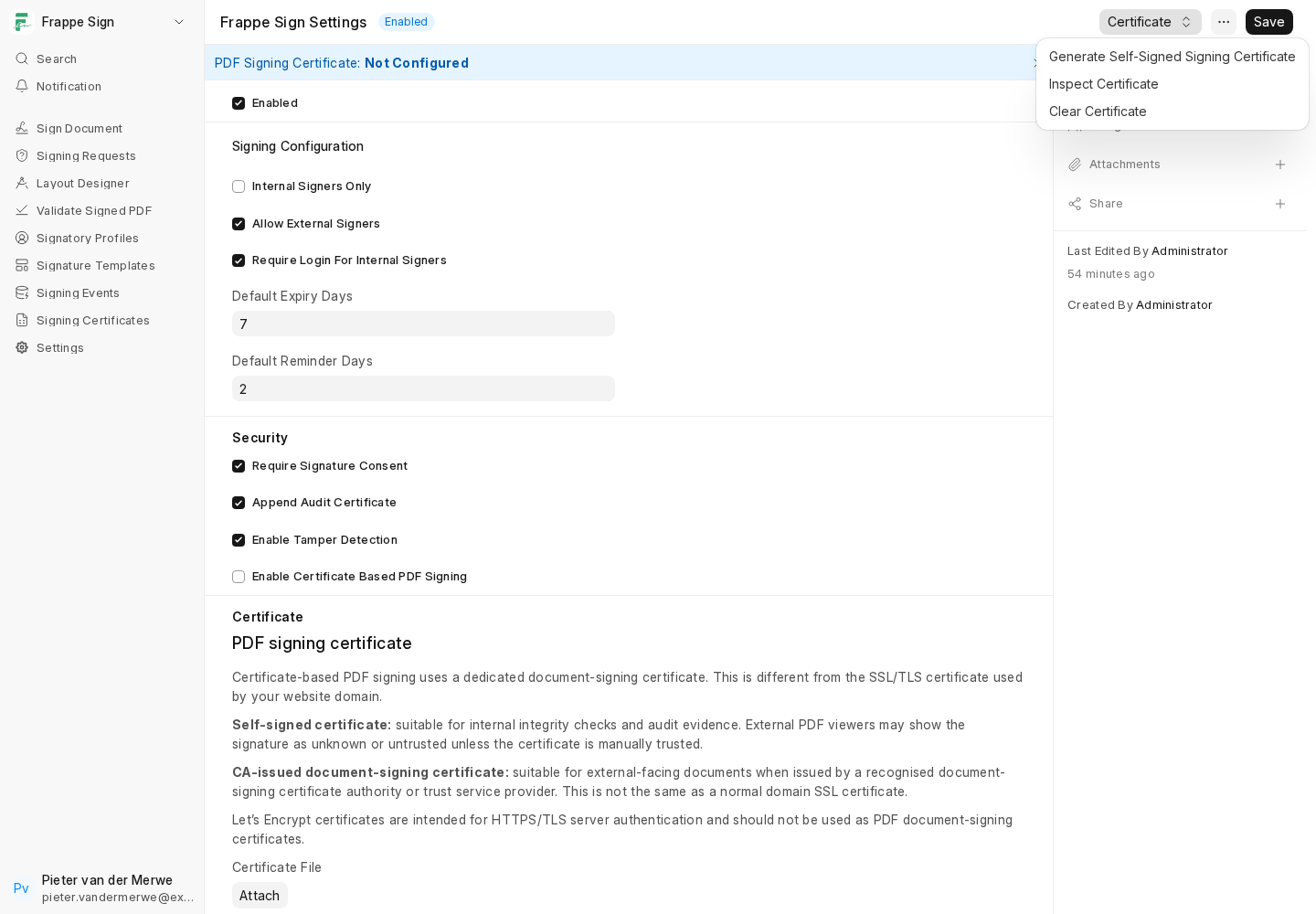
- Generate Self-Signed Signing Certificate creates a private
.p12, attaches it, stores its password and reads back the metadata. Good for a quick start. - Inspect Certificate re-reads the attached certificate file and refreshes the metadata fields.
- Clear Certificate removes the configured certificate. Documents already signed are not affected.
The certificate password is stored in a Password field and is never shown again after saving.
Next: tell Frappe Sign which DocTypes can be used as signing sources. See Configured Source DocTypes.