Creating a Request - From an Uploaded PDF
Use this when the document to be signed doesn't come from a Frappe DocType at all, just a PDF you already have. You need the Frappe Sign Sender (or Manager) role.
The video below follows the whole flow, from a new request to a sent one:
1. Start a new request
Open Signing Requests and click Add Frappe Sign Request. Give the request a Request Title (it appears in the signing emails), leave Source Type as Uploaded PDF, and pick a Signing Mode (see Signers, Signing Modes & Cohorts).
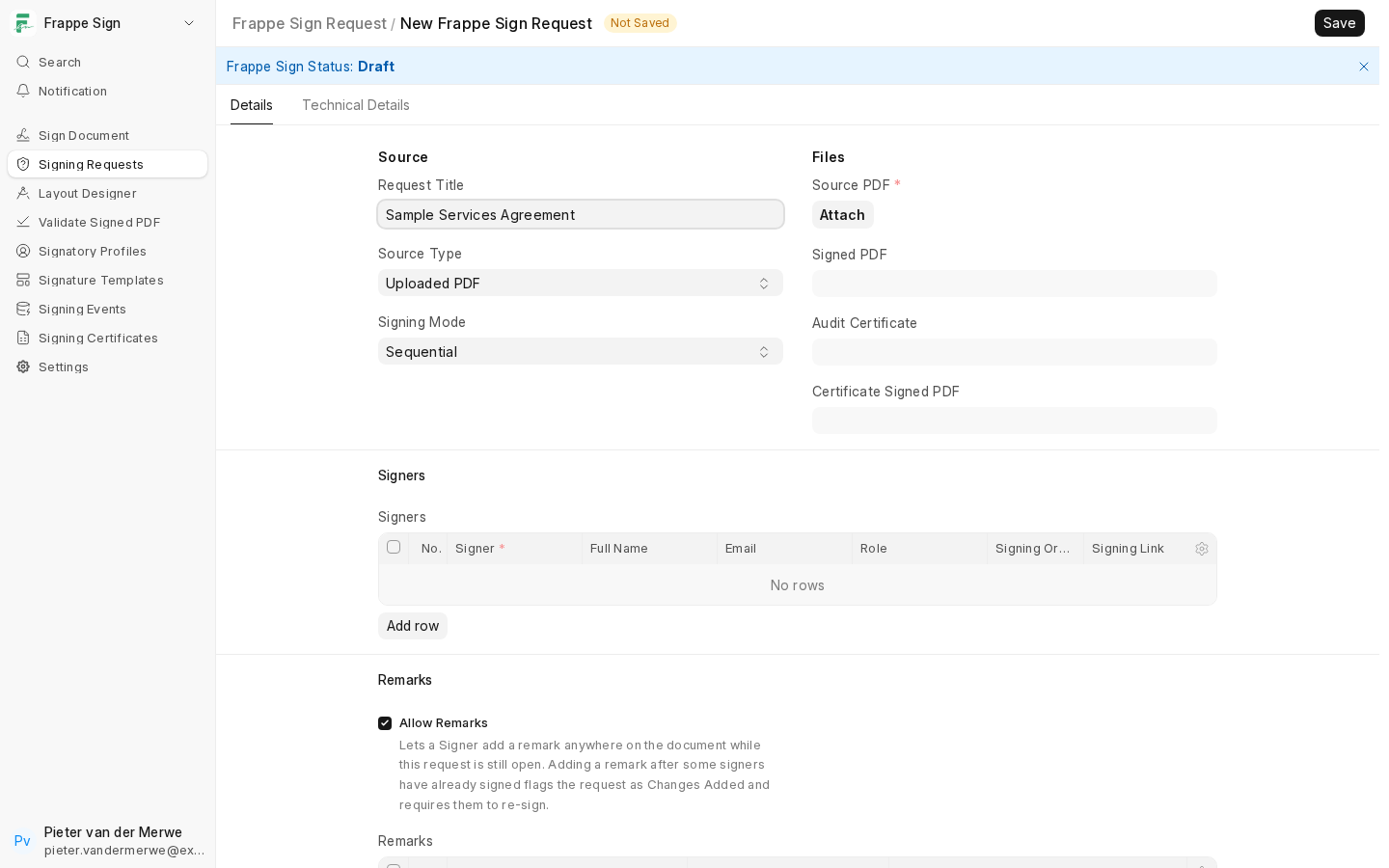
2. Attach the source PDF
Click Attach on the Source PDF field and upload the file.
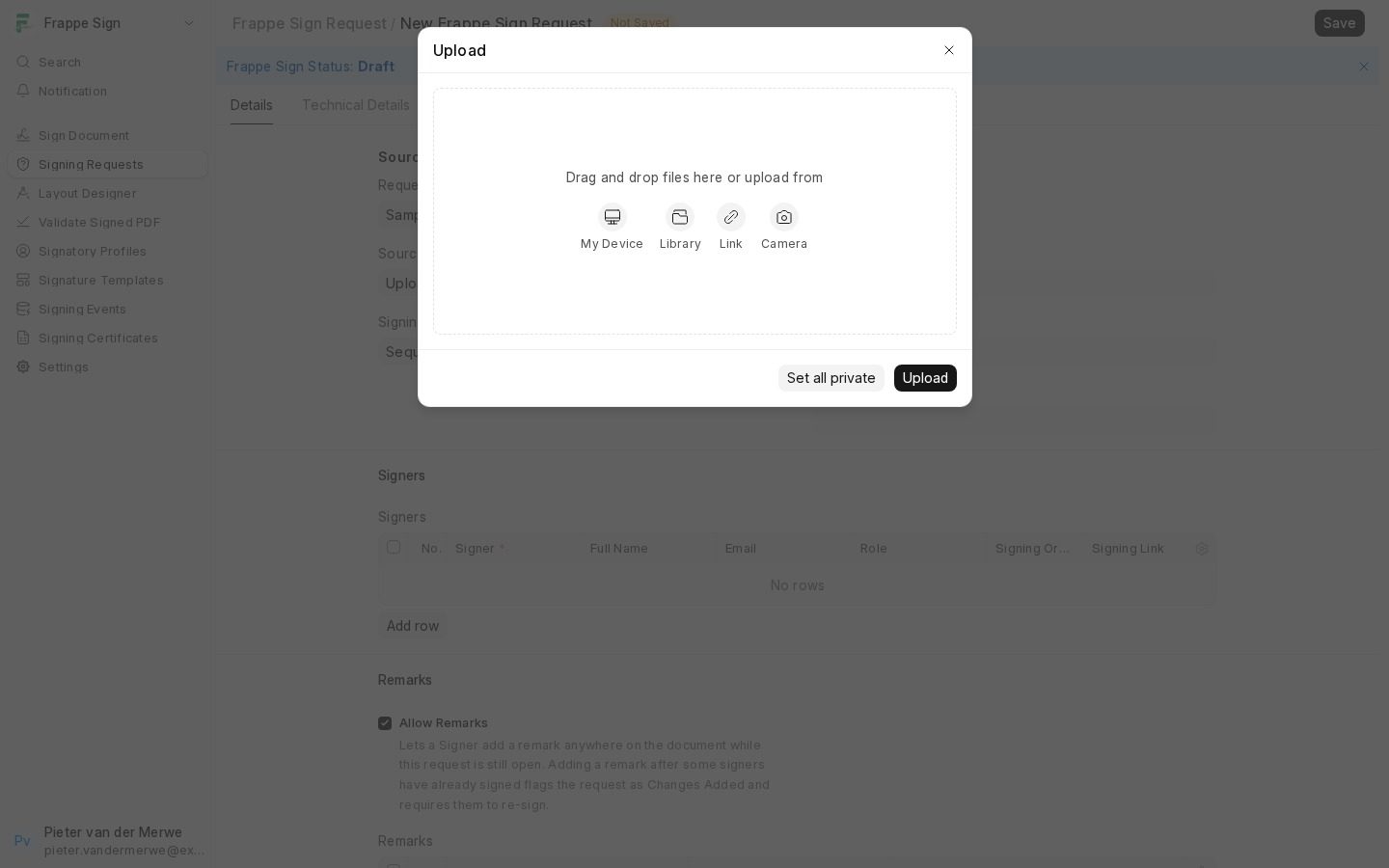
Frappe Sign records the PDF's hash. Once fields have been placed you can no longer swap in a different PDF, and once the request is sent the file is locked completely (see Document Locking & Evidence Protection).
3. Add signers
Add a row to the Signers table for each person and pick their Frappe Sign Profile. The name and email fill in automatically. Choose each row's Role (Signer, Viewer or Approver) and, for sequential requests, its Signing Order.
Save the request. It stays in Draft until fields are placed.
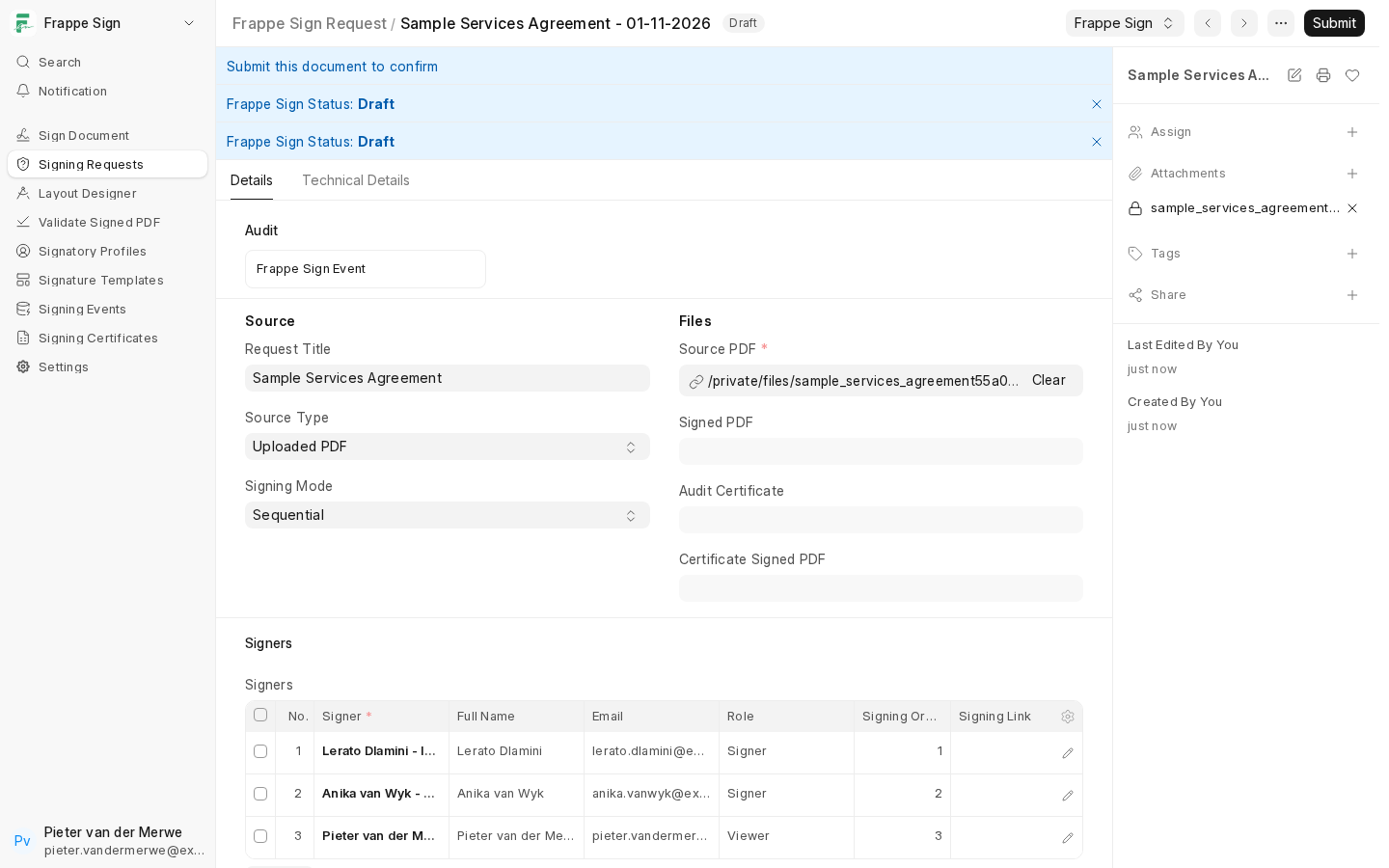
4. Place signing fields
Open Frappe Sign → Open Designer and place at least one field for each Signer. See The Signing Designer for the full walkthrough. The status moves to Prepared once fields are saved.
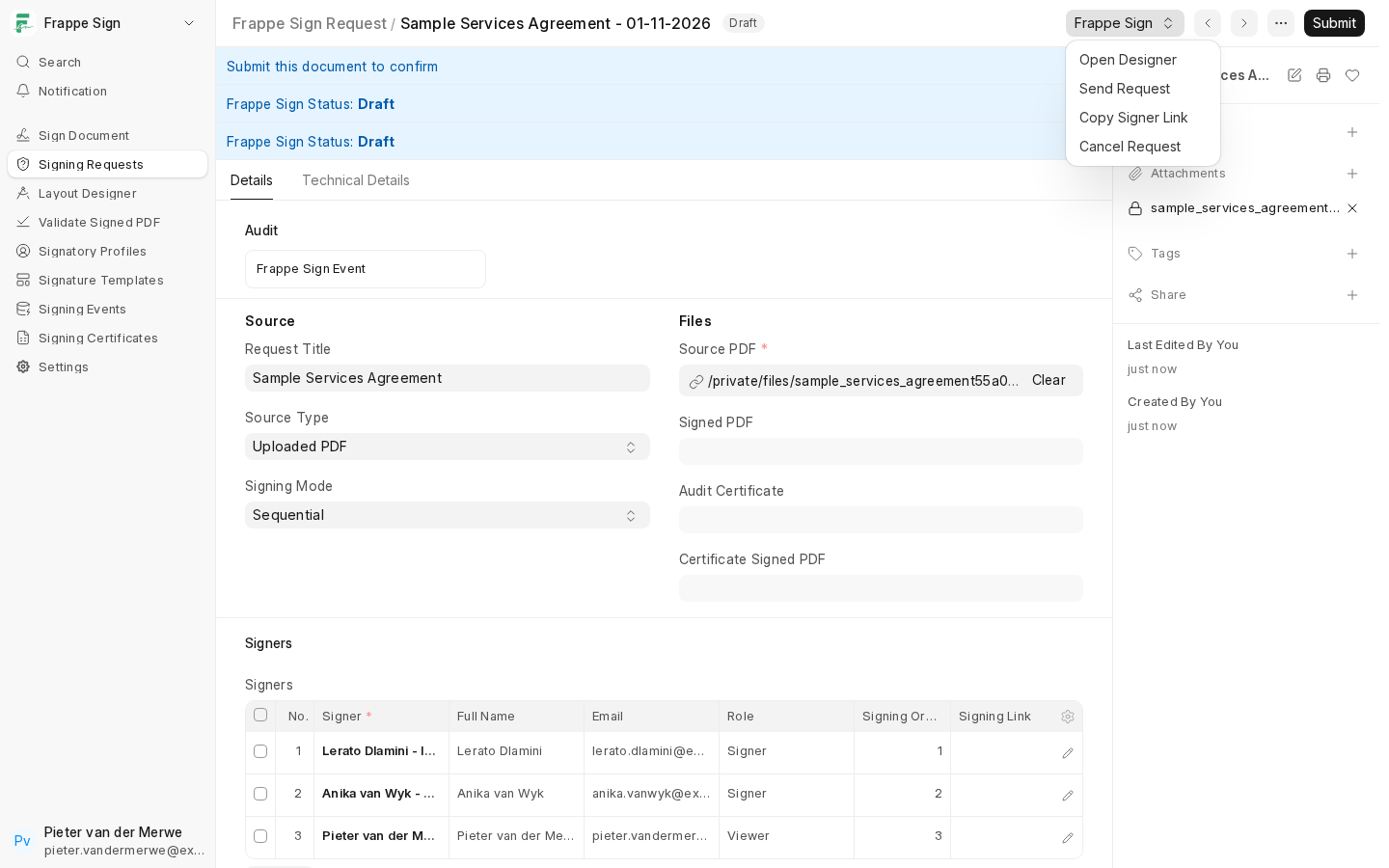
5. Send it
Send from the Designer toolbar or from Frappe Sign → Send Request. See Sending a Request & the Signing Portal.