Creating a Request - From a Frappe Document
Use this when the document to be signed already lives in Frappe (a contract, a form, an internal record) and its DocType has been added to Configured Source DocTypes.
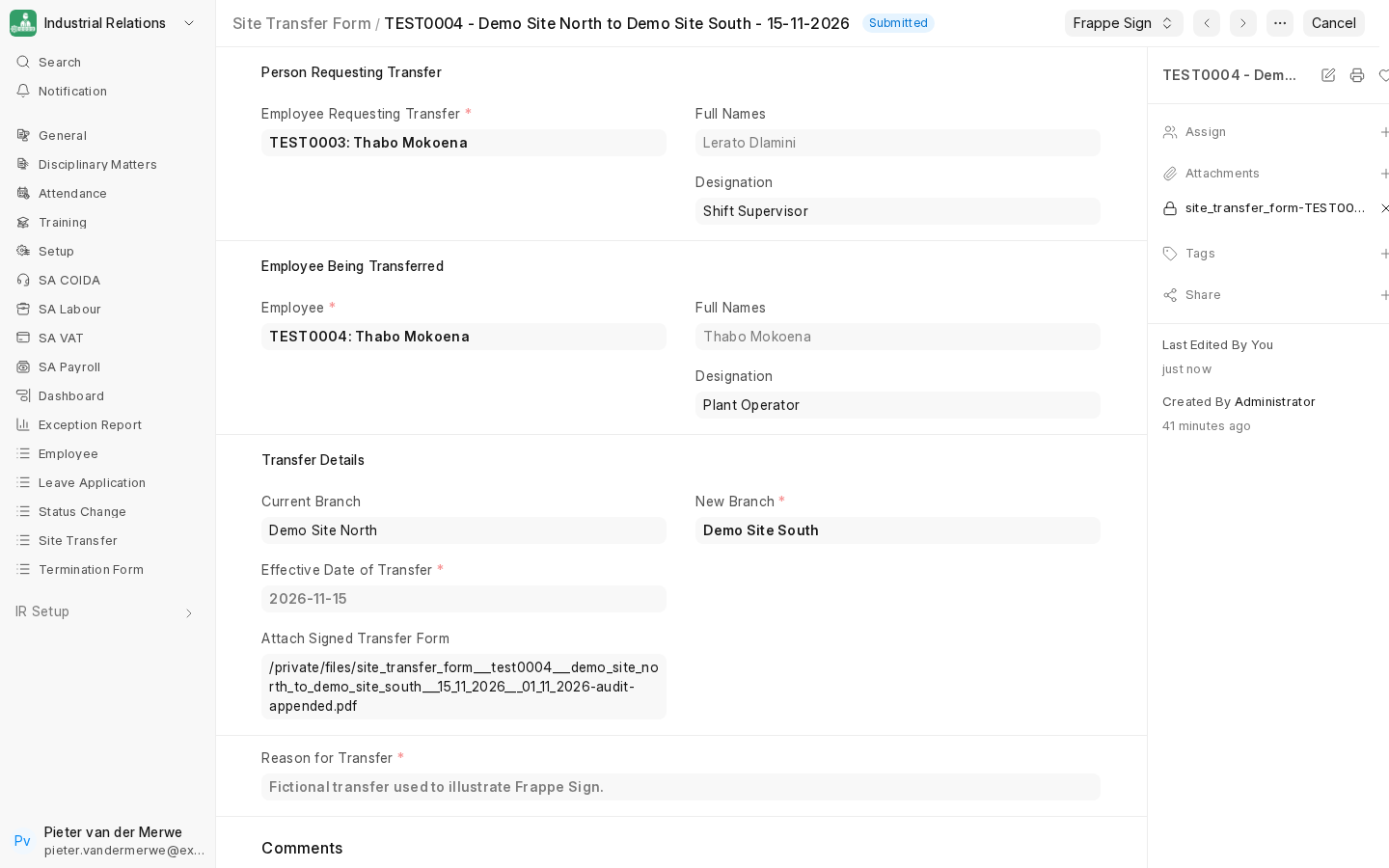
1. Open the source document
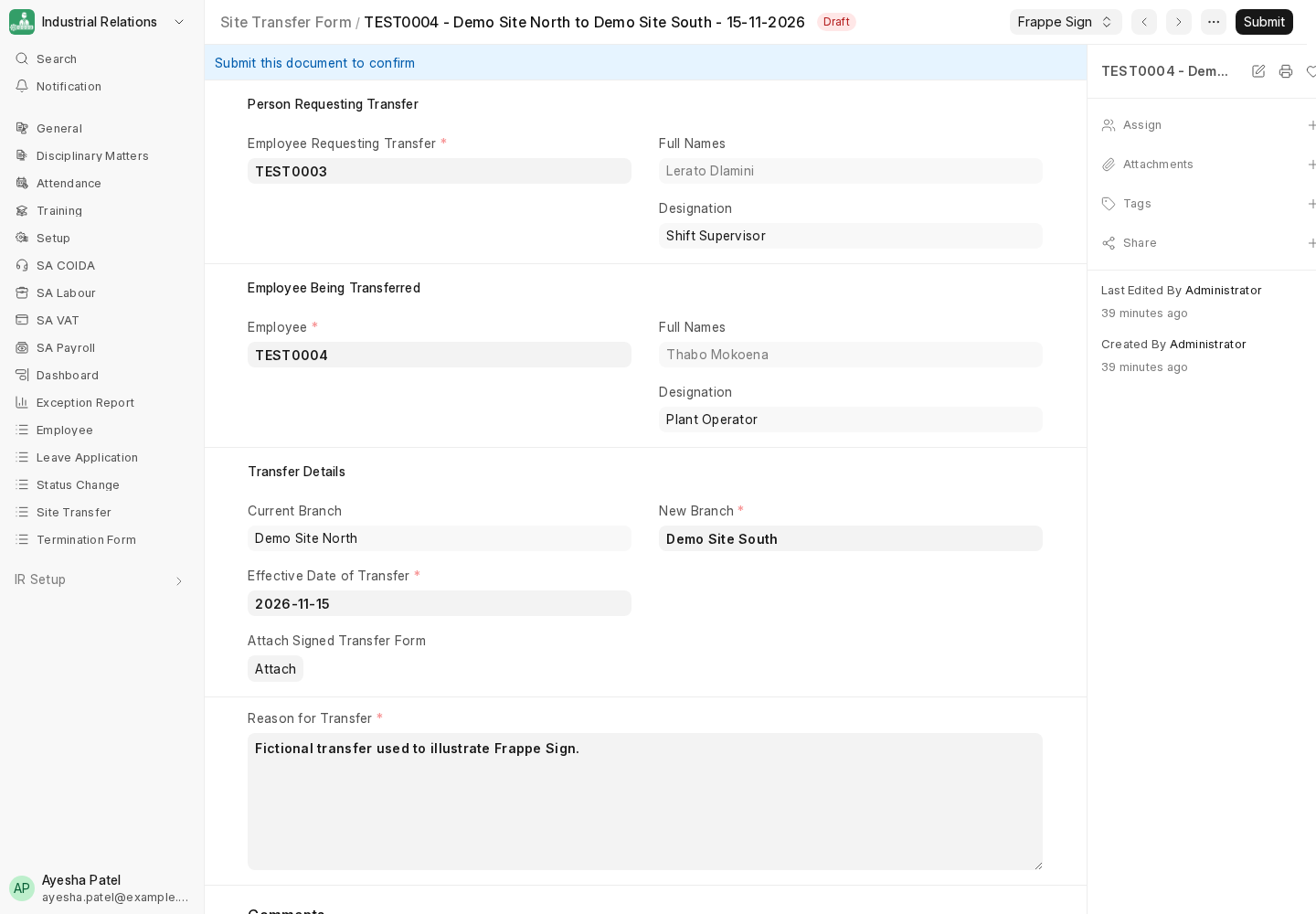
Open any record of a configured DocType. A Frappe Sign button appears in the toolbar automatically, for users who have the Required Sender Role (if one is set).
2. Create the signing request
Click Frappe Sign → Create Signing Request.
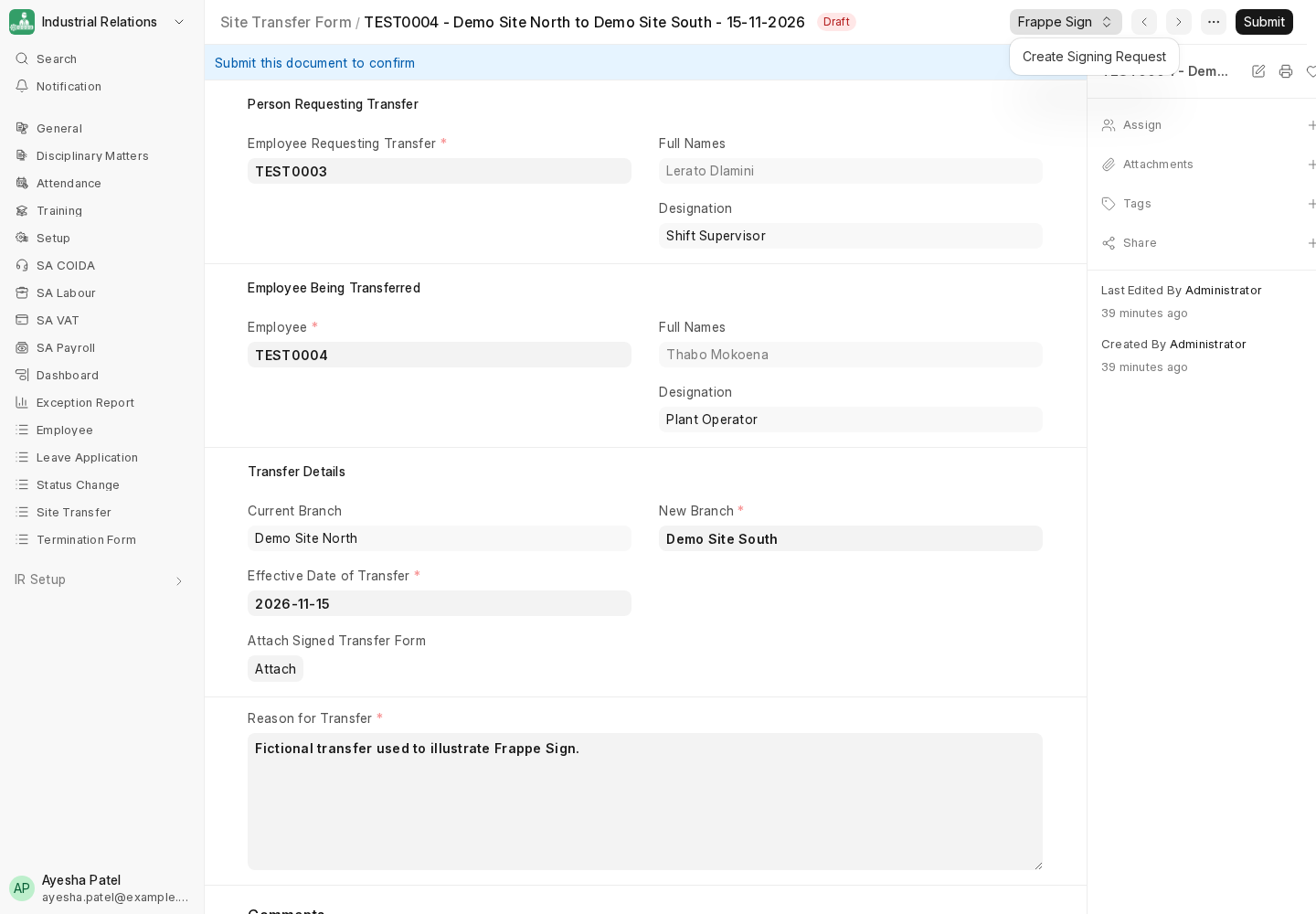
If the DocType has a Default Print Format, the request is created immediately. Otherwise you are asked to choose one. Frappe Sign renders the document through that Print Format into a private PDF snapshot, and opens the new request:
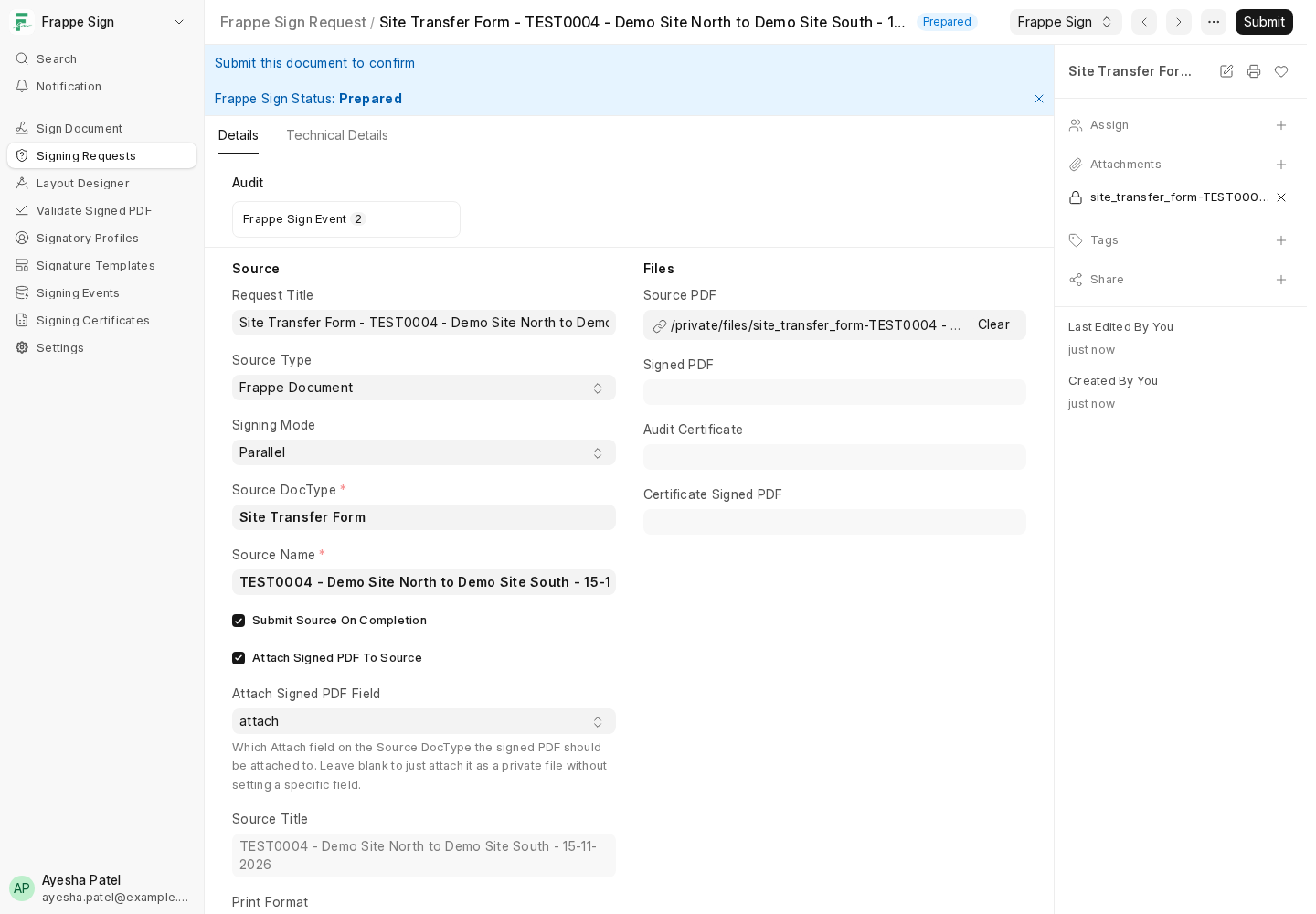
The new request is already Prepared, with:
- Source DocType, Source Name, Source Title and Print Format filled in;
- Expires On set from Default Expiry Days;
- Attach Signed PDF To Source, Attach Signed PDF Field and Submit Source On Completion copied from the configured DocType row. You can still change them here until the request is sent.
When the request is sent, the source document, Print Format, source PDF, all three on-completion settings and the signing fields lock, so nobody can quietly redirect a request mid-flight. See Document Locking & Evidence Protection.
3. Add signers and place fields
Add signers and set the signing mode as for any request (see Signers, Signing Modes & Cohorts), then open the Designer. The rendered Print Format, with its letter head, is what signers will see:
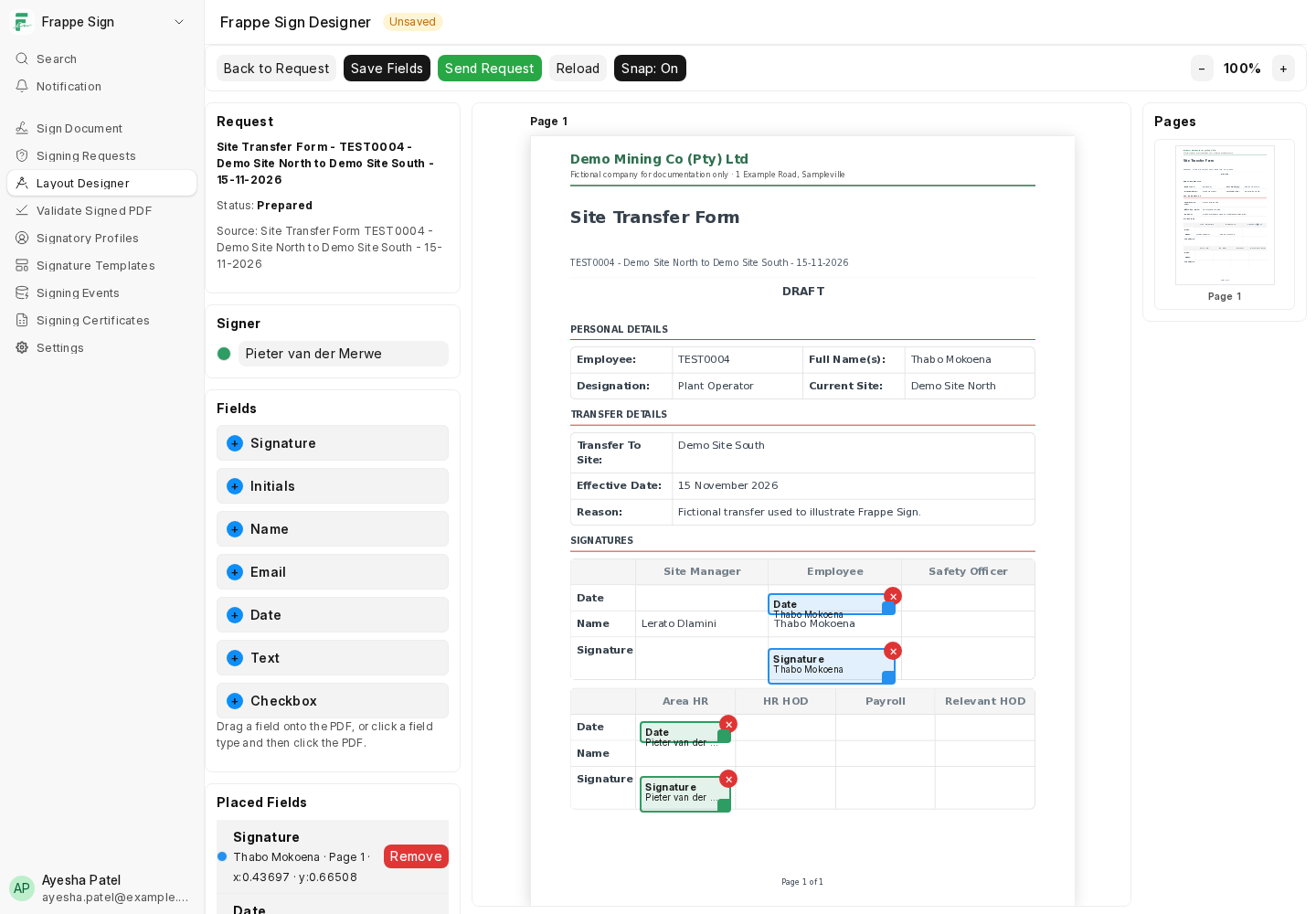
Then send the request. See Sending a Request & the Signing Portal.
4. What happens on completion
When every signer has signed:
- If Attach Signed PDF To Source was on, the final signed PDF is attached to the source document, and placed in Attach Signed PDF Field if one was set.
- If Submit Source On Completion was on and the source document is submittable and still a draft, it is submitted.